This article explains how Chromium-based browsers store saved passwords on Linux, why this mechanism is insecure by design under local attacker assumptions, and demonstrates how stored credentials can be decrypted.
Ever got told to never click “Save” when your browser asks you to save the password you just entered? I often hear that, so I decided that I had to figure out exactly why this was deemed to be a bad practice.
This was an opportunity for me to explore the domain of cryptography and all of the fundamental theory and practice that I had acquired during my freshman year.
This article will be a documentation of my experimental journey to understand why saving passwords on your browser is generally considered a bad security practice, I will first dive into how the process of saving passwords works and the cryptography behind, before practically testing to retrieve and decrypt/deobfuscate my own passwords in order directly measure what exactly makes this practice insecure.
Understanding how Chromium handles saved passwords
Typically, when you press the “Save” button when getting that little pop up each time you register or login to a website for the first time, your browser stores the password you just agreed to save (alongside the username and other data) in a SQLite database inside your machine.
On Linux, you can take a look at that for yourself by inspecting the following path:
~/.config/google-chrome/Default/ for Chrome
or ~/.config/chromium/Default/ for Chromium
You should see a file named Login Data. That’s the database we’re interested in.
We open it by using the command line interface sqlite3.
$ sqlite3 'Login Data'
SQLite version 3.45.1 2024-01-30 16:01:20
Enter ".help" for usage hints.
sqlite> .tables
insecure_credentials    password_notes          sync_model_metadata
logins                  stats
meta                    sync_entities_metadata
The database includes multiple tables containing informations about the user’s login habits.
But here we’re solely insterested in the logins table.
On sqlite3, we can take a look the table’s structure (schema):
sqlite> .schema logins
CREATE TABLE logins (origin_url VARCHAR NOT NULL, action_url VARCHAR, username_element VARCHAR, username_value VARCHAR,
password_element VARCHAR, password_value BLOB, submit_element VARCHAR, signon_realm VARCHAR NOT NULL,
date_created INTEGER NOT NULL, blacklisted_by_user INTEGER NOT NULL, scheme INTEGER NOT NULL, password_type INTEGER,
times_used INTEGER, form_data BLOB, display_name VARCHAR, icon_url VARCHAR, federation_url VARCHAR,
skip_zero_click INTEGER, generation_upload_status INTEGER, possible_username_pairs BLOB,
id INTEGER PRIMARY KEY AUTOINCREMENT, date_last_used INTEGER NOT NULL DEFAULT 0, moving_blocked_for BLOB,
date_password_modified INTEGER NOT NULL DEFAULT 0, sender_email VARCHAR, sender_name VARCHAR, date_received INTEGER,
sharing_notification_displayed INTEGER NOT NULL DEFAULT 0, keychain_identifier BLOB, sender_profile_image_url VARCHAR,
date_last_filled INTEGER NOT NULL DEFAULT 0, actor_login_approved INTEGER NOT NULL DEFAULT 0, UNIQUE (origin_url,
username_element, username_value, password_element, signon_realm));
CREATE INDEX logins_signon ON logins (signon_realm);
sqlite>
Note: If you want to try this, make sure that your browser is closed, as the table will be locked if it is opened.
Let’s query the database, we’ll select the following attributes:
origin_url, username_value, password_value.
sqlite> SELECT origin_url, username_value, password_value FROM logins;
https://www.*******.org/|**************@gmail.com|v11U8��=��!��@�
https://www.*******.com/|**************@gmail.com|v10C53S�Y�8�s@c�Da�
[...]
As we expect, the passwords are not shown in plain text. We notice that they’re preceded by two prefixes: “v11” and sometimes “v10”.
We’ll get into that right now, but first, we want to manipulate the passwords, and that is not possible if we query the DB like this because sqlite3 is currently interpreting the encrypted passwords as UTF-8 text, thus corrupting the values.
The password_value actually consists of binary data coming from an encryption/obfuscation process.
We can get the raw data in hexadecimal by using the hex() function, we’ll specify as parameter the password_value attribute.
So we should type in the following query:
SELECT origin_url, username_value, hex(password_value) FROM logins;
Now let’s go back to those “v10” and “v11” prefixes. To understand these, we must go to Chromium’s source code.
When inspecting the os_crypt_linux.cc file we stumble upon this:
// Prefixes for cypher text returned by obfuscation version.  We prefix the
// ciphertext with this string so that future data migration can detect
// this and migrate to full encryption without data loss. kObfuscationPrefixV10
// means that the hardcoded password will be used. kObfuscationPrefixV11 means
// that a password is/will be stored using an OS-level library (e.g Libsecret).
// V11 will not be used if such a library is not available.
constexpr char kObfuscationPrefixV10[] = "v10";
constexpr char kObfuscationPrefixV11[] = "v11";
As we can see, we have two possible prefixes (“v10” or “v11”) used by Chromium to signal how the saved password is processed, they’re notably referred to as “ObfuscationPrefix”. Additionally we read that:
- The “v10” prefix signals that the password is encrypted using a hardcoded password.
- The “v11” signals that the password is stored by using an OS-level library, Libsecret is given as an example. It is also said that V11 will not be used if the OS-level library is not available.
The hardcoded password mentionned in the comments is "peanuts" and is actually in the same file, just a few lines ahead:
// clang-format off
// PBKDF2-HMAC-SHA1(1 iteration, key = "peanuts", salt = "saltysalt")
constexpr auto kV10Key = std::to_array<uint8_t>({
    0xfd, 0x62, 0x1f, 0xe5, 0xa2, 0xb4, 0x02, 0x53,
    0x9d, 0xfa, 0x14, 0x7c, 0xa9, 0x27, 0x27, 0x78,
});
Note: We also see that the salt is set to
"saltysalt".
This tells us that Chromium derives the encryption key using PBKDF2-HMAC-SHA1, with:
- the secret
"peanuts" - the salt
"saltysalt" - only 1 iteration (instantaneous derivation)
const std::array<uint8_t, crypto::aes_cbc::kBlockSize> kIv{
    ' ', ' ', ' ', ' ', ' ', ' ', ' ', ' ',
    ' ', ' ', ' ', ' ', ' ', ' ', ' ', ' ',
};
This is what we call the Initialization Vector (IV) used for AES in CBC mode. As we can see the IV is fixed an consists of 16 space characters (0x20).
Accessing the Keyring
A keyring is a secure credential storage service provided by the operating system’s desktop environment. It is a centralized, encrypted database that store secrets, passwords, keys and certificates and make them available to applications.
On Linux Mint, which is the distribution I use, there’s an app called Passwords and Keys (Seahorse) to inspect and manage the keyring.
When opening it, we’re met with a “Login” section, and in it is listed Chromium Safe Storage / Chrome Safe Storage: this is exactly what we’re looking for. When inspecting the item, we get a base64-encoded password.
When V11 is used, this is the exact secret used by Chromium to encrypt the saved passwords.
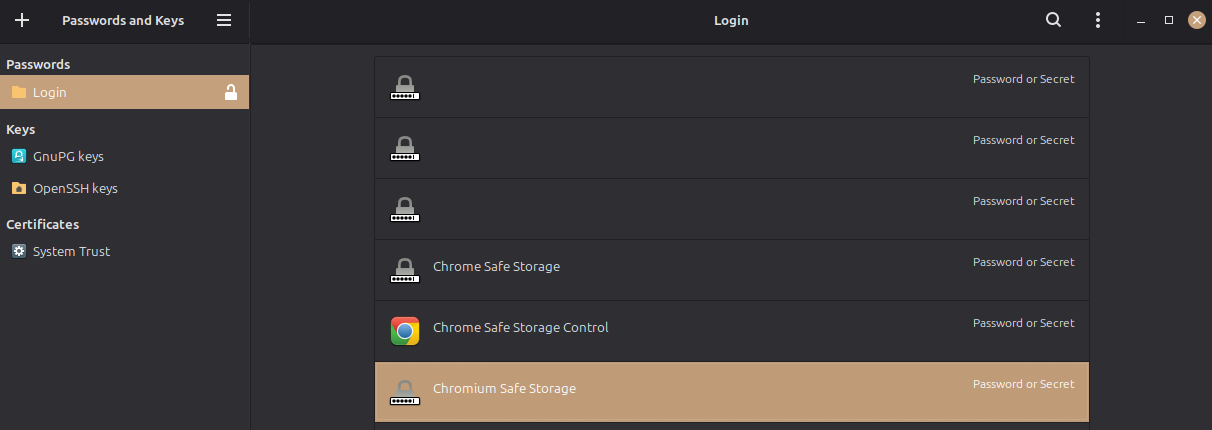
You could also just type in $ secret-tool lookup application chromium (or chrome) in your terminal to retreive your browser’s secret.
Understanding how the encryption / obfuscation works
AES (Advanced Encryption Standard) is a symmetric block cipher that transforms data through multiple rounds of substitution and permutation operations based on the key.
AES-CBC is AES in Cipher Block Chaining mode. AES encrypts data block by block (16 bytes). CBC is a mode of operation that defines how blocks are chained. In the encryption process, for each 16-byte block, it XORs the plaintext block with the previous ciphertext block, then encrypts the result with the AES key. For the first block, the “previous ciphertext block” is the IV.
The Initialization Vector (IV) is usually a non-secret, unpredictable value used as the initial input block in a chaining cipher mode (like CBC). Its cryptographic function is to provide probabilistic encryption, ensuring that encrypting identical plaintext with the same key produces distinct ciphertexts. This breaks patterns and prevents statistical attacks on the ciphertext.
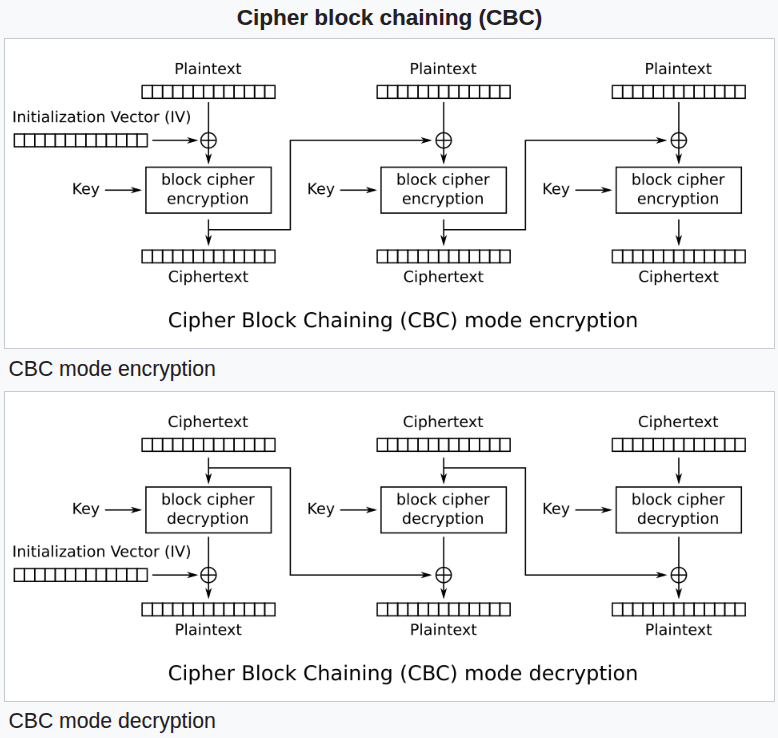
Image Source: Wikipedia
So to decrypt AES-CBC we need:
- the IV
- the key, which is derived via PBKDF2
- the ciphertext
This is great because:
- As we pointed out, the IV is constant in Chromium’s code and consists of 16 space characters.
- The key is either
"peanuts"or extracted from the OS’ DE. - And we already have the ciphertext.
Let’s try this with a V11 password.
>>> import sqlite3
>>> from Crypto.Cipher import AES
>>> from Crypto.Protocol.KDF import PBKDF2
>>> encrypted_password = "7631319F0A2C7D1E4B8*******************"
>>> # prefix: 76 31 31 -> ASCII -> "v11"
>>> # so let's remove the v11 prefix
>>> encrypted_password = encrypted_password[2*3:] # 3 bytes: 6 hex chars
>>> salt = b'saltysalt'
>>> iv = b' ' * 16
>>> length = 16
>>> iterations = 1
>>> # since the password was encrypted using V11
>>> # we use the keyring's secret to derivate the key
>>> keyring = "**********************==".encode('utf8')
>>> key = PBKDF2(keyring, salt, length, iterations)
>>> cipher = AES.new(key, AES.MODE_CBC, IV=iv)
>>> decrypted = cipher.decrypt(bytes.fromhex(encrypted_password))
>>> decrypted
b'**************\x05\x05\x05\x05\x05' # \x05 : padding bytes
Note: Padding is extra bytes added so that the length fits a required block size.
I censored my keyring secret and my password but it does work. We’ve successfully decrypted the password. If it would’ve been a V10 password, we’d use the hardcoded password instead of the browser’s keyring secret.
Conclusion
Therefore, a malicious program running locally, with the current user’s privileges, could very easily recover these saved passwords. As we have seen, it just needs read access to the browser’s profile directory and the ability to query the user’s DE keyring.
For v10 passwords, the attack is even more trivial as the key is just public information.
This may seem like some kind of weakness, but it isn’t: it should be noted that that is perfectly normal. Chrome’s threat model explicitly doesn’t include compromised or infected machines. Thus, stored passwords are only obfuscated against casual access (which is enough) and that’s by design.
Why aren‘t compromised/infected machines in Chrome’s threat model?
Although the attacker may now be remote, the consequences are essentially the same as with physically-local attacks. The attacker’s code, when it runs as your user account on your machine, can do anything you can do.
With that said, in order to demonstrate the practical implications, I’ve written an educational tool in Python3 that automates this entire decryption process for all saved passwords on Chromium or Chrome.
This tool is for educational and personal research only. Use it only on your own systems or systems you were authorized to completely manipulate. It should not be used on a session that does not belong to you.
Sources
- https://superuser.com/questions/146742/how-does-google-chrome-store-passwords
- https://ohyicong.medium.com/how-to-hack-chrome-password-with-python-1bedc167be3d
- https://source.chromium.org/chromium/chromium/src/+/main:components/os_crypt/
- https://fr.wikipedia.org/wiki/PBKDF2#Fonction_de_d%C3%A9rivation
- https://en.wikipedia.org/wiki/Block_cipher_mode_of_operation#Cipher_block_chaining_(CBC)
- https://en.wikipedia.org/wiki/Block_cipher_mode_of_operation#Initialization_vector_(IV)
- https://stackoverflow.com/questions/23153159/decrypting-chromium-cookies/23727331
- https://rtfm.co.ua/en/chromium-linux-keyrings-secret-service-passwords-encryption-and-store/
- https://chromium.googlesource.com/chromium/src/+/HEAD/docs/security/faq.md
Disclaimer
This project is for educational and personal amateur security research only.
It demonstrates why browsers should not be relied upon to protect credentials on compromised or shared systems. It is by no means meant to be used on a machine you were not authorized to manipulate in such a manner.